This article is for small business owners who know they should turn on multi factor authentication but worry it will lock people out or slow everyone down. It explains what it is, why it matters, and how to roll it out calmly.
What it is, in plain words
Multi factor authentication means proving who you are in two ways when you sign in. The first is something you know, your password. The second is something you have, usually your phone.
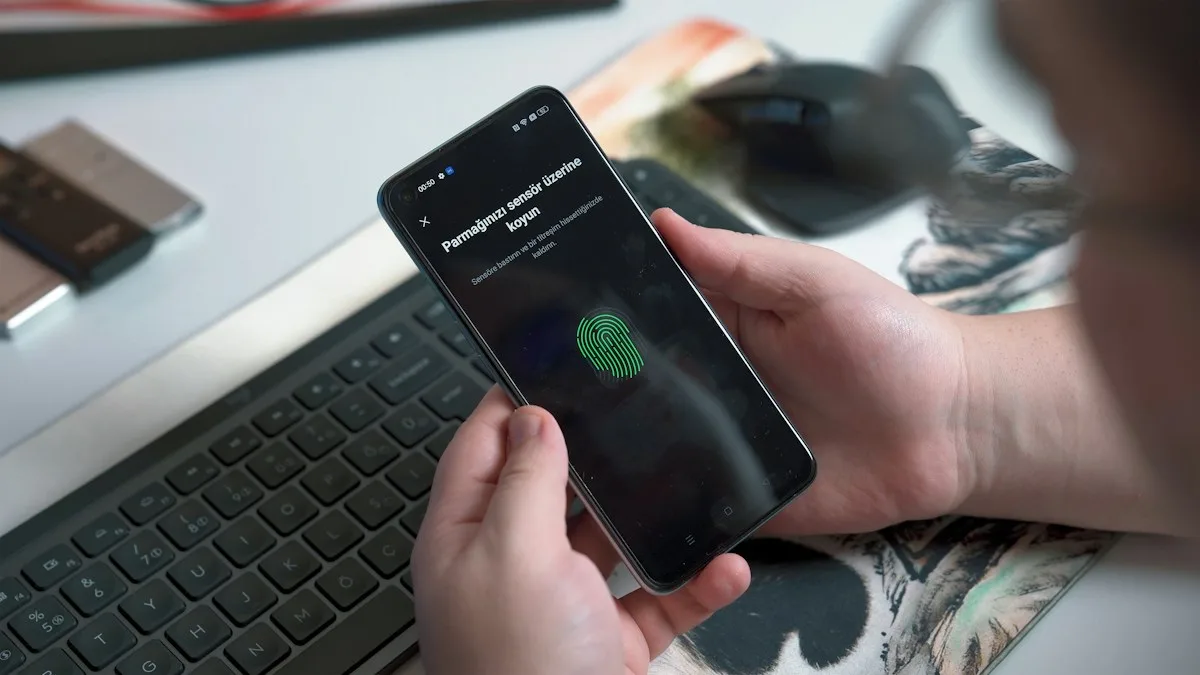
After typing the password, you approve a prompt in an app, type a short code, or use a fingerprint or face. Someone who has stolen your password but does not have your phone cannot get in.
Why it matters so much
Most attacks on small businesses start with a stolen password. People reuse passwords, type them into fake login pages, or have them exposed in someone else’s data breach. With a password alone, the criminal walks straight into email, files and banking.
Multi factor authentication turns a stolen password from a disaster into a non event. It is one of the controls expected by Cyber Essentials, the Government-backed scheme, and many insurers now ask whether you use it.
Where to switch it on first
- Email, especially Microsoft 365 or Google Workspace accounts.
- Online banking and payment systems.
- Accounting software.
- Remote access to the office network or PCs.
- Your domain and website hosting accounts.
- Admin accounts for anything, which should never rely on a password alone.
Email comes first, because an email account is the key to resetting almost every other password.
Choosing the second step
An authenticator app on a phone is the best balance for most small businesses. It is free, works without a phone signal and is harder to intercept than a text message.
Text message codes are better than nothing and can be a fallback. For people without a work phone, a small physical security key is a good option. We generally avoid relying on a personal phone number alone for admin accounts.
A rollout that does not stop work
- Tell everyone a week ahead what is changing, why, and what they will need.
- Start with yourself and one or two willing colleagues, and iron out problems.
- Set a day for everyone else, and be available to help that morning.
- Make sure each person sets up a backup method, such as a second device or backup codes kept safely.
- Switch on the rule that requires it, so nobody can quietly skip it.
Most people are set up in five minutes. The bit that takes planning is shared accounts, older devices and anyone who works remotely.
Shared accounts and awkward cases
Shared logins, such as a general office mailbox that several people sign into, cause the most trouble. The better fix is usually to give each person their own account and share the mailbox, rather than sharing a password.
Older email apps on phones or desktop software may not support the new sign-in. These need updating or replacing before you switch on the requirement, or they will stop working.
Avoiding prompt fatigue
Criminals sometimes send repeated approval prompts, hoping someone taps approve just to make them stop. Teach everyone one rule: if you get a sign-in prompt you did not expect, deny it and tell someone. Where possible, use number matching, where you type a number shown on screen, which makes this trick much harder.
When a phone is lost or replaced
Plan for this before it happens. Know who can reset someone’s second step, and make sure it requires checking it is really them. A new phone should be set up before the old one is wiped.
The short version
Switch it on for email first, then banking, finance and anything with admin rights. Use an authenticator app, give everyone a backup method, and roll it out over a week with help on hand. It is the single most effective step against stolen passwords.
Does it slow people down?
Less than people expect. On a trusted work PC, Microsoft 365 and most other services remember the device for a while, so staff are asked for the second step now and then, not every time. The extra few seconds matter far less than the hours lost cleaning up after a stolen password.
Want help switching it on across your accounts? See our IT security services or call 01252 686 513.